Sorry for the long post.
Users who connect the RJ-45 WAN port of their own (separate) NAT router who put their modem into bridge mode (not configured to handle a WAN IP), typically can not by default get access anymore to their modem's UI.
One of the best reasons for DSL users for getting access to the modem so that they can get the dsl transceiver status (how strong the DSL signal is).
I know every single method to get into a device while it is in bridge mode.
** Option #1 **
#1 Your computer must have a wired NIC. and you must know how to setup a manual Static IP on your computer. To help you find that info out, you can use the guides at https://portforward.com/networking/staticip.htm
#2 The wired NIC gets disconnected from the Primary NAT router.
#3 Setup a Local Static IP.
#4 Based upon what you are trying to do, these settings will work.
IP Address: 192.168.1.2
Subnet Mask: 255.255.255.0
That will do it.
#5 Do not set a Default Gateway or edit the DNS Settings on your computer.
#6 The Wired NIC that you disconnected gets connected to one of the other LAN ports of the device that is in bridge mode.
#7 You can now talk to 192.168.1.1
** Option #1b **
Q: But what if my router that is in bridge mode that I want to get access to has only one LAN Port?
Answer:
Step 1: Get a networking hub/switch if you do not have one already. If you do not have one already, I recommend a networking switch with Auto MDI-X so that you do not have to worry about the type of networking ethernet cable.
Step 2: Disconnect the device you want to get into is in bridge mode that has only one LAN port from your primary NAT router.
Step 3: Connect one wire to the device you want to get into is in bridge mode that has only one LAN port to the networking hub/switch.
Step 4: Connect one wire to your primary NAT router to the networking hub/switch.
Step 5: Power up the networking hub/switch that is between the the device you want to get into is in bridge mode that has only one LAN port from your primary NAT router.
Step 6: You are to connect your computer to the networking hub/switch that is connected between the device you want to get into is in bridge mode that has only one LAN port and your primary NAT router.
** Option #2 ***
#1 Your computer must have two NICs, one of the NICs must be a wired NIC., you must know how to setup a manual Static IP on your computer (see option one above, I have a link to a place that provides directions), and both routers can not be in the same subnet.
#2 Here is an example of what I mean by two subnets. You will need to adjust as need be.
a) the device that is in bridge mode LAN IP 192.168.1.1 with the subnet mask of 255.255.255.0
b) Primary NAT router's LAN IP 192.168.2.1 with the subnet mask of 255.255.255.0
#3 A wired NIC gets disconnected from the Primary NAT router.
#4 Setup a Local Static IP for that NIC that is connected to one of the other LAN ports of the the device that is in bridge mode.
#5 Again, based upon what you are trying to do
IP Address: 192.168.1.2
Subnet Mask: 255.255.255.0
#6 Again, do not set a Default Gateway or edit the DNS Settings on your computer.
#7 The Wired NIC that you disconnected gets connected to one of the other LAN ports of the device that is in bridge mode.
#8 Again, You can now talk to 192.168.1.1
#9 But this time since you have two NICs, it is possible to access both routers - access the Internet at the same time.
** Option #2b **
Q: But what if my router that is in bridge mode that I want to get access to has only one LAN Port?
Answer: I gave the answer to this info already as option 1b.
** Option #3 **
As long as you only need access to the routers without disconnecting your computer from the Primary NAT router.
#1 Both routers can not be in the same subnet (see option two, as I explained what that means.)
#2 Setup a Static WAN IP of the RJ-45 router so that is in the same subnet as the device that is in bridge mode.
#3 Based upon what you are trying to do, assuming the same subnets setting before you must use:
IP Address: 192.168.1.2
Subnet Mask: 255.255.255.0
Default Gateway: 192.168.1.1
DNS #1: 192.168.1.1
#4 Again, You can now talk to 192.168.1.1
#5 Be strongly advised as long as the RJ-45 router's WAN IP is set to Static and is in the same subnet as the the device that that in bridge mode and if the Primary NAT router is not a Dual WAN port router of any kind (RJ-45 WAN1 and RJ-45 WAN2, RJ-45 WAN and 4G/LTE, RJ-45 WAN and POTS dial-up, ETC..) you (and the computers that are behind this RJ-45 WAN port router) are not going to be able to access the Internet!
** Option #4 - Another Possible fix with access to both and online. **
#1 Both routers can not be in the same subnet.
#2 Using third party firmware (either with commands and then rebooting the router OR in the UI option of Route Modem IP field) on the router..
Note by commands and then rebooting the router, I mean - (Third party site) dd-wrt.com -> Community -> Wiki -> Tutorials (Basic and advanced configuration tasks for your router...
By UI option Route Modem IP, I mean with this..
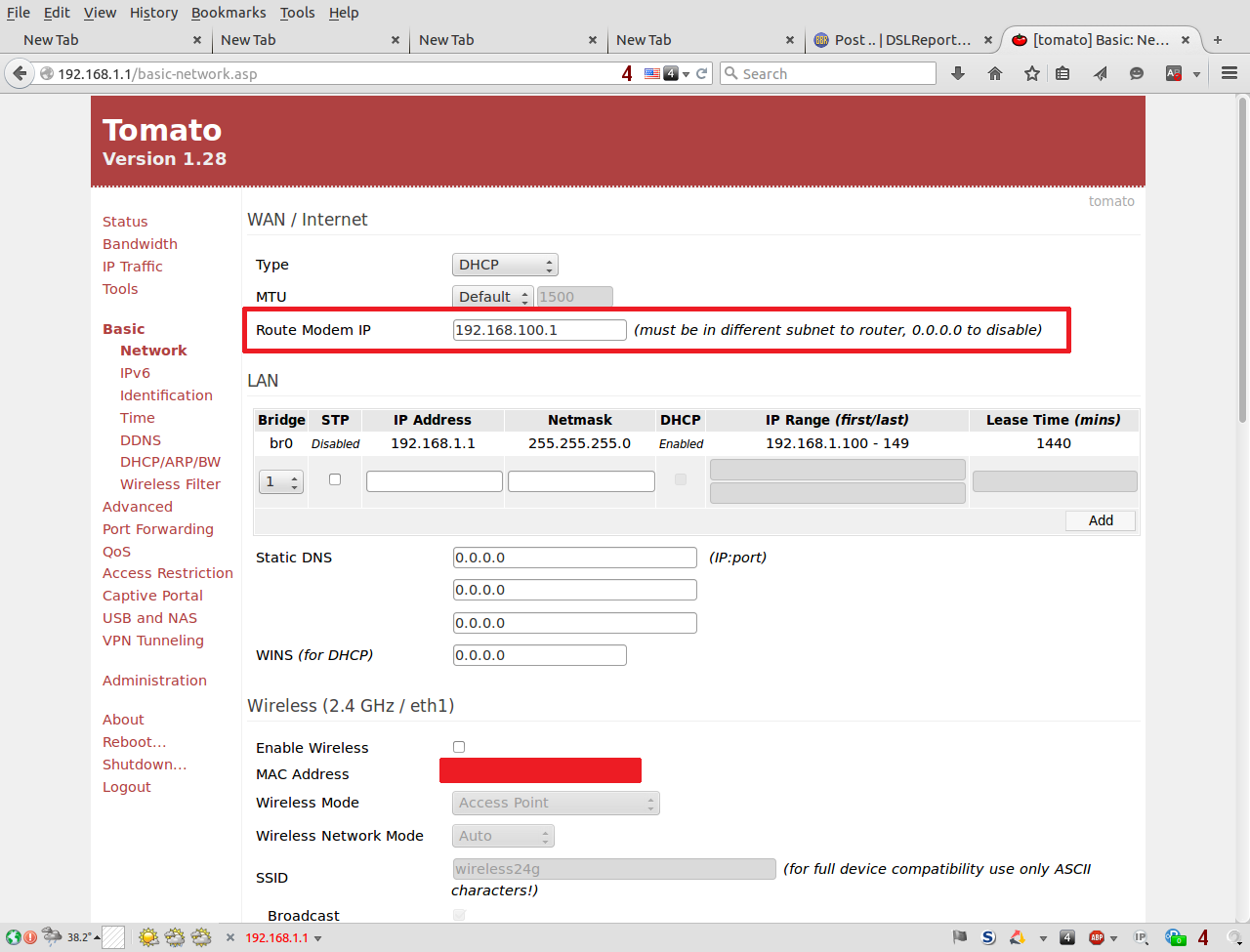
While it is possible to do this with third party firmware, it is NOT limited/restricted to only third party firmware.
** Option #5 - Another Possible fix with access to both and online. **
#1 Both of the routers can not be in the same subnet and you must have a second RJ-45 WAN port NAT router.
#2 For that other router, you must:
a) Have it disconnected at this step.
b) Set it's LAN IP Address with the same Subnet as the primary but outside of the DHCP Range of the Primary router's DHCP Range.
For example with the primary IP Address 192.168.2.1 with the subnet mask of 255.255.255.0, the first DHCP Address that it handles out is 192.168.2.100 and the last DHCP Address that it handles out is 192.168.2.254 - then the other router's LAN IP Address could be 192.168.2.6
c) Disable the DHCP Server in the second RJ-45 WAN port NAT router.
#3 Once you make those changes, now you can connect both of those routers together but this time LAN to LAN.
#4 Now in the third router, setup it WAN IP to be Static in the same subnet as the as the the device that is in bridge mode .
IP Address: 192.168.1.2
Subnet Mask: 255.255.255.0
Default Gateway: 192.168.1.1
DNS #1: 192.168.1.1
#5 Now you can connect the WAN port of the third router to the LAN port of the as the the device that is in bridge mode .
#6 Now in the second RJ-45 WAN port NAT router, you use a static route in this format..
Subnet IP: (the subnet of your modem)
Mask: (the Subnet Mask of the primary and secondary router on the LAN)
Gateway: (the IP address of the secondary router on the LAN)
Like so..
Subnet IP: 192.168.1.0
Mask: 255.255.255.0
Gateway: 192.168.2.6
#7 Again, You can now talk to 192.168.1.1
All of the options/possible fixes above that I have tested and I know that work.
** Option #5b **
Q: But what if my router that is in bridge mode that I want to get access to has only one LAN Port?
Answer: I sort of gave this answer already. See options 1b and 2b and use common sense/logic.
** Option #6 (with access to both and online) **
You can use this method if you are using another provider's equipment and you want to access said equipment.
With my RJ-45 WAN port router connected with it's WAN port to the LAN port of the cable modem and both devices are different LAN subnets - while I have the Route Modem IP option I can access the cable modem as normal (That was not possible on my DSL connection).
By this I mean while I have that feature, I do not have to use it.
Now you have to understand that I am not a cable expert so I can not tell you if that is a cable thing or it is because of the brand (maybe also model) of the cable modem (ARRIS/SURFboard SB6141).
