Here is a Resolution! I've spent hours trying to set up my Outlook 2010 to work with my third-party (non-verizon) email, and I finally came up with a resolution. After culling through many posts, I was able to piece together what I needed to make it work, and I thought I would share... with pictures.... (my example is with NetZero; but these settings can be used for any other account).
The idea is that your email will be received from the POP3 server that belongs to the provider of your email address. The sending provider will be Verizon.
(1) In Outlook, under "File", select "Account Settings"
(2) Once the "Account Settings" window opens, either select "New" to create a new account, or "Change" to update your existing account...
(3) In the "Internet E-mail Settings" window, fill in your information. (Here, I use Netzero's POP server, but you would replace with your emai account's POP server). Note, that the OUTGOING MAIL SERVER is set to "smtp.verizon.net". (If you have seen references to "outgoing.verizon.net," these are older references. "smtp.verizon.net" (as of 5/19/2014) is the correct outgoing SMTP server...
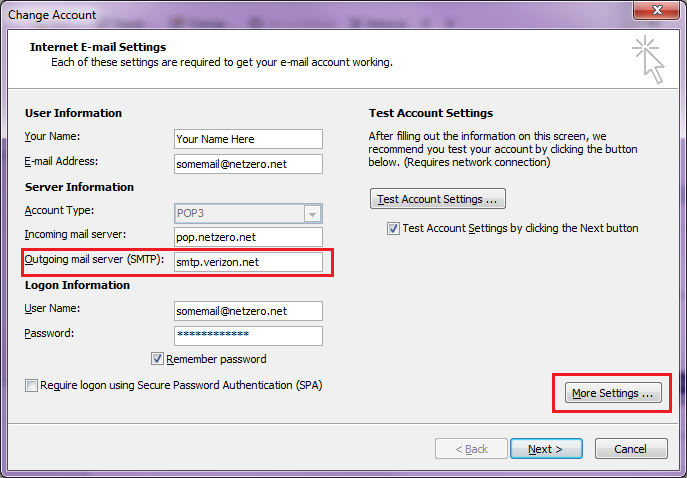
(4) Next, click the "More Settings" button. The two tabs that will be the most interest to you are "Outgoing Server" and "Advanced."
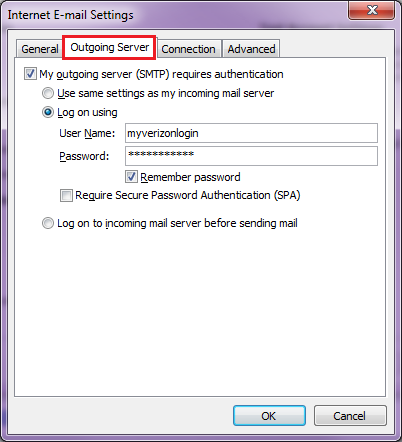
-- Under the "Outgoing Server" tab, check "My outgoing server (SMTP) requires authentication.
-- Next, select "Log On using" and enter your user name and password that you use to login to your Verizon account at www.verizon.com. Note: DO NOT check "Require Secure Password....". Here is the screen:
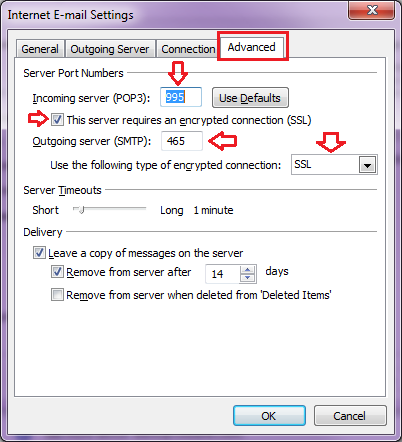
(5) Next, click to the "Advanced" tab. The four settings you will be most interested in are:
(a) Incoming server (POP3): 995
(b) Check, "This server requires an encrypted connection (SSL)
(c) Output server (SMTP): 465
(d) "Use the following type of encrypted connection", select "SSL" from the drop-down.
NOTE: You can optionally set the items in the "Delivery" section of the screen.
(6) Click "OK" to save your settings.
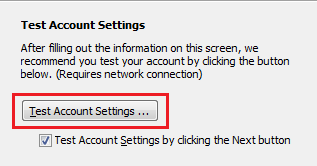
(7) Now, back on the Account setting screen, click "Test Account Settings". If your settings are correct, you will see Succes in both receiving and sending email.
(8) You should be able to complete your setup.
I hope this brings some clarity for those of you who, like me, have trouble following some of the other posts and don't fully understand what is needed when they just say what the settings are without SHOWing how they are set.
Here are some other pages that helped me for reference:
Why won't Outlook 2013 allow me to set up a Verizon.net email account?
Outgoing email - had to change authentication & port this morning
Set up your email software with your Verizon email account settings
Set up Verizon Online Email with Outlook 2010
Verizon POP3 IMAP SMTP Mail News Servers
Cheers...


